How to charge extra for personalization on Shopify
Engraving, gift wrap and rush orders cost you more. Three ways to charge for them, and where each one breaks.
Price what costs you more
Personalization takes time and material: an engraving, a longer chain, a second pet in a portrait, a rush slot. If those come free, every personal order earns less than a plain one, and the more popular personalization gets, the worse it is.
Shoppers expect to pay for it. Bain & Company found that shoppers paid about 20% more for a customized product than for the standard one.
Work out the price of an add-on
Start from what the extra costs you, then round to a price that reads well:
- Material: the longer chain, the gift box, the second photo print.
- Time: setting up the engraver, drawing a second pet, hand-lettering a card.
- Risk: rush orders push other work back; custom sizes are harder to resell.
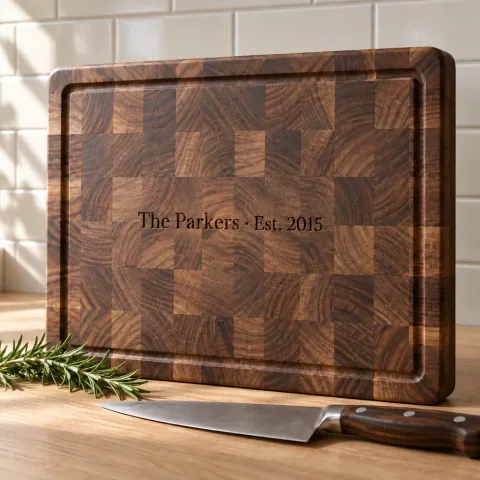
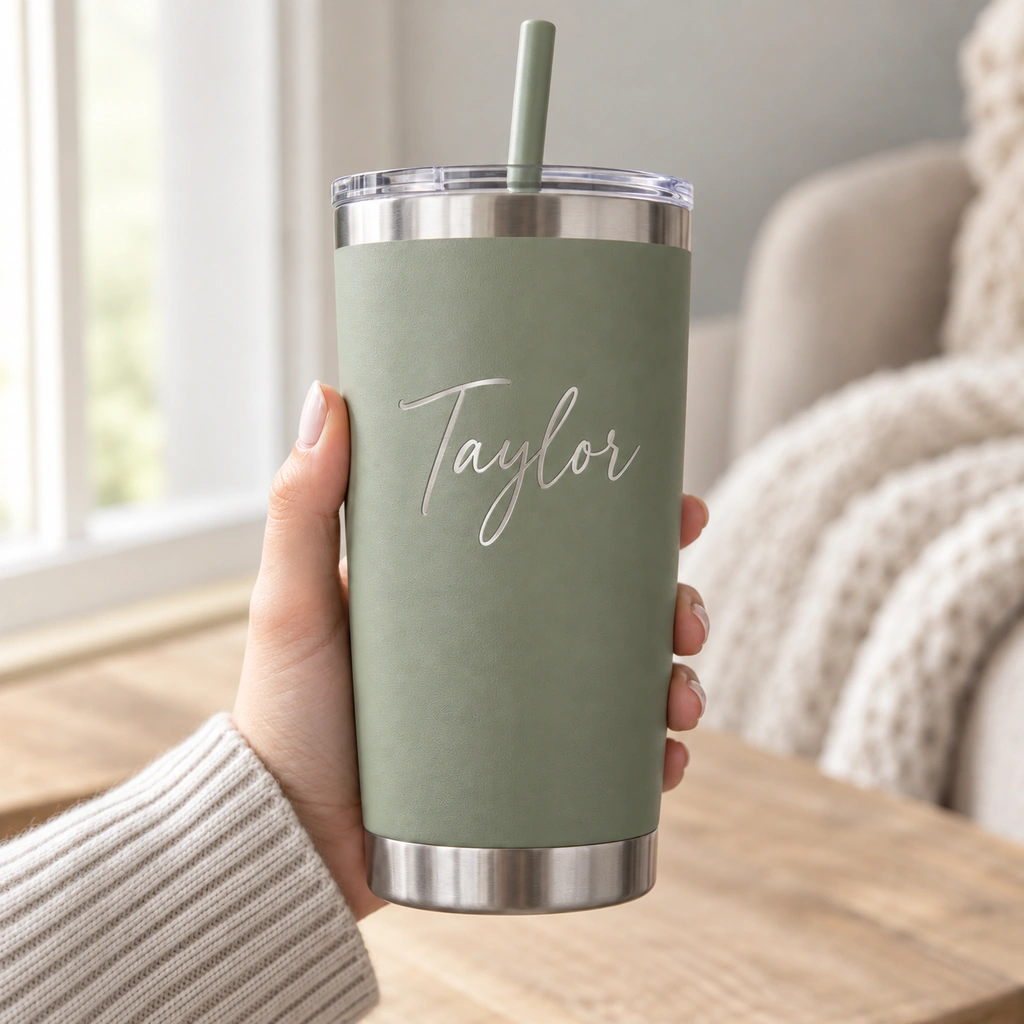
Our templates come with example prices to start from: engraving both sides of a tumbler +$5.00, a red bow on an ornament +$2.00, a handwritten recipe on a cutting board +$15.00, an edible photo on a cake +$10.00. Change them to your own.
Option 1: a variant for each price
Make each priced choice a variant with its own price. It works for one or two choices: a tumbler engraved on one side or both is two variants, and that’s fine.
It breaks when choices stack. Three metals and three chain lengths is 9 variants, and gift wrap doubles that to 18. Shopify allows 2,048 variants per product, but each one is a row to price, stock and keep in sync, and a shopper picking through a long list of near-identical variants is a shopper about to leave.
Option 2: a separate add-on product
Some stores sell “Gift wrap” as its own product that joins the cart. It is quick to set up, but it leaks:
- It fills your product list, your search results and your reports with things that aren’t products.
- It isn’t tied to the item it belongs to. With two items in the cart, which one gets the wrap?
- A shopper can remove it from the cart while the item still asks for wrapping.
Option 3: priced options, charged in the cart
The cleanest way is to price the choice itself. The shopper picks an 18 in chain, sees +$15.00 next to it, and the cart line costs that much more. Shopify supports this with its Cart Transform function, which apps use to add the price to the item in the cart.
You keep one product, one cart line, and a price that matches what the shopper chose. Remove the item and the extra goes with it; change the choice and the price follows.
Ways to price
- Per choice: a longer chain, a premium wood. Our cutting board template adds $20.00 for maple or walnut.
- Per letter: engraving priced by length, for long names and messages.
- Per file: each extra photo in a collage.
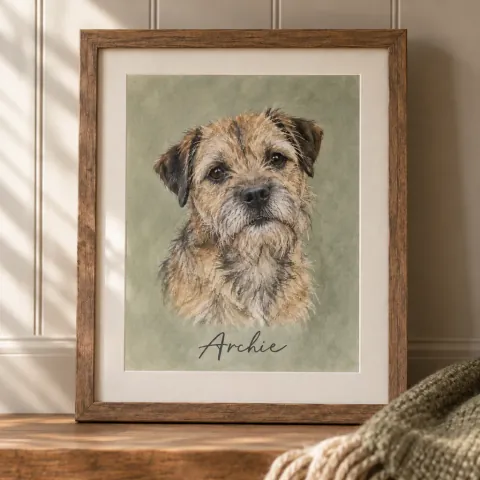
- By count: a second pet in a portrait adds $35.00, a third $70.00.
- Depending on another choice: an 18 in chain adds $15.00 in gold, $10.00 in rose gold and $5.00 in silver.
- Pick several: gifts with flowers, each priced: chocolates +$8.00, a vase +$15.00, a balloon +$6.00, a teddy bear +$12.00.
- Flat extras: gift wrap, or a rush slot for +$20.00.
Rush orders
A rush slot is worth pricing because it moves other work. Our pet portrait template offers “Rush order” for +$20.00, with one line underneath: “Moves your portrait to the front of the line.” Offer it only when you can keep the promise, and say what it changes.
Show the price before Add to cart
Shoppers accept a price they saw coming. Show each add-on next to its choice, and the new total on the button, so the cart holds no surprise. A price that appears only in the cart reads like a hidden fee, even when it’s fair.
GMVify Custom Product Options shows the price next to each choice and charges the add-on in Shopify’s cart.
Make extras easy to say yes to
- Start from the plain choice. Extras should be added on purpose, never pre-ticked.
- Use a checkbox for a single extra. “Add a red bow (+$2.00)” is one tap.
- Name what it does. “Engrave both sides” beats “Option B”.
- Keep extras close to the product. A bow on an ornament makes sense; a random upsell in the same list doesn’t.
Don’t charge for what’s hidden
When a field only appears after an earlier answer, its price should only count while it’s showing. If a shopper ticks “Engrave the back” for +$8.00, then unticks it, the $8.00 has to leave the total too. Test this path on every product that has conditional extras.
Check the money on a test order
Before you launch, place one order with every extra and one with none. Check the product page total, the cart, the checkout and the order in your admin. All four should show the same amounts, and the order should say what each amount was for.
Questions merchants ask
Can line item properties carry a price?
Not by themselves. They store information; an app has to add the price, for example through Shopify’s Cart Transform function.
Variants or priced options?
Variants for what you stock and count. Priced options for personal details and extras, so the product stays simple.
Should personalization be free to win the sale?
If it costs you time or material, price it. Shoppers expect to pay more for a product made for them, and a clear price next to the choice is easier to accept than a surprise later.
Does GMVify charge add-ons in the cart?
Yes. GMVify Custom Product Options adds the add-on price in Shopify’s cart, so it is paid at checkout with the item.
Can an add-on price depend on another choice?
Yes. In the name necklace template, the price of each chain length depends on the metal.
What happens to the extras if a shopper removes the item?
With priced options charged on the item, the extras go with it. With a separate add-on product, they stay in the cart unless the shopper removes them too.