How to add custom product options in Shopify
Variants cover what you stock. Names, dates, photos and paid add-ons need fields. Here is how to tell them apart and set them up.
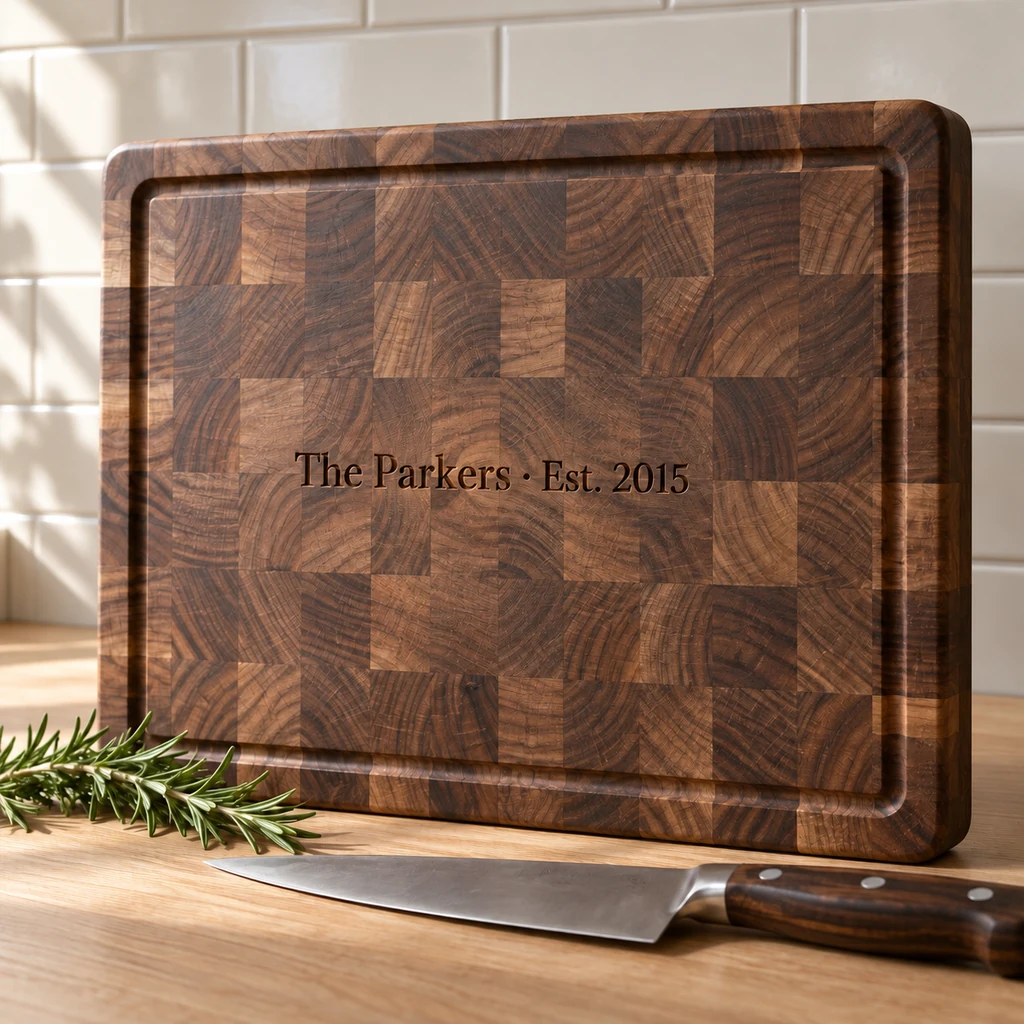
What Shopify gives you
Every Shopify product can have up to three options, such as Size, Color and Material, and up to 2,048 variants. Shopify raised the limit from 100 to 2,048 variants for all merchants in October 2025.
A variant is one version of a product that you can stock and sell: a medium black T-shirt, a 16 oz sage tumbler. Each variant has its own price, SKU, weight and inventory count, and your theme shows the options as buttons or dropdowns on the product page. A T-shirt in five sizes and four colors is 20 variants, and Shopify tracks each one separately.
That model is built for what you keep on a shelf. Personal products ask for something else.
Variant or field: a quick test
Before you add anything to a product, ask four questions about it:
- Do you stock it? If you keep separate inventory for each choice, like blank tumblers in five colors, it’s a variant.
- Is the list fixed and short? Sizes and colors are. A name, a date or a message isn’t: it’s a field.
- Does every order bring something new? A photo, a logo or a handwritten recipe is a field, usually an upload.
- Is it an extra on top of the product? Gift wrap, a second engraved side or a rush slot is a field with a price, not a new version of the product.
Most personal products end up with one or two variants for what you stock, and a handful of fields for what the shopper tells you.
Where variants stop working
Personal products ask for things you can’t stock:
- Free text. A name, a date or a message has endless values. No list of variants can hold them.
- Files. A photo or a logo is different on every order.
- Add-ons. Gift wrap, a longer chain or a rush slot multiply your variants. Three metals, three chain lengths and gift wrap on or off is already 18 variants for one necklace, and each new extra doubles it again.
- Follow-up questions. A gift message only matters when the shopper chose gift wrap. Variants can’t ask a second question based on the first.
These belong in fields on the product page, not in variants.
The built-in way: line item properties
Shopify themes can collect extra details with line item properties. Each one is a name and a value saved on the cart line and on the order, so the shopper sees it in the cart and your team sees it in the admin. A theme can capture them with an input inside the product form, or through the Ajax Cart API.
In the product form, an input named properties[Engraving] saves what the shopper types as “Engraving”. A name that starts with an underscore, such as properties[_ref], is hidden from the shopper at checkout.
It works, with limits:
- Every field means editing theme code, and the code stays in that theme. Switch themes and you add it again.
- A property has no price. Charging for it needs something else.
- A required input only stops the product form. Nothing checks the cart again at checkout.
- Showing a field only after an earlier answer means writing your own script.
The app way: a fields block
An options app adds the fields as an app block that you place in the theme editor, with no code. With GMVify Custom Product Options you can:
- Ask with text, choices, swatches, dates, checkboxes and uploads.
- Show a field only when an earlier answer calls for it.
- Price a choice, a letter or a file, charged in Shopify’s cart.
- Check required fields at checkout, Shop Pay included.
- Flag orders with missing entries.
- Show the fields in the shopper’s language, translated automatically.
- Start from 94 templates by product type.
The answers still land on the order as line item properties, so your team reads them where it reads everything else.
Pick the right field type
The field type decides how easy the answer is to give, and how clean it is when it reaches you:
- Text for names and short messages. Set a character limit: our engraving template allows 20 characters, the tumbler template 15 for a name.
- Long text for lists and notes, like the family names on a Christmas ornament, up to 120 characters.
- Swatches for colors and materials, where seeing the choice helps: thread colors, paper, metal.
- A dropdown for longer lists, like a title on a sweatshirt: Mama, Mimi, Nana, Grandma or Auntie.
- Buttons for two to four choices worth seeing at once, like left or right sleeve.
- A date for events, such as the night on a star map or a wedding date.
- A checkbox for a yes or no extra, like adding a red bow for +$2.00.
- An upload for photos, logos and print files.
Set it up in five steps
- List what changes on every order (personal) and what you stock (variants).
- Keep the stocked choices as variants, with their own inventory.
- Add a field for each personal detail, in the order a shopper decides, and make the ones you can’t make without required.
- Put a price on the choices that cost you more, and show it next to the choice.
- Place a test order, an express checkout included, and read what arrives in your admin.
Starting from a template for your product type saves most of steps three and four. You can change every label, limit and price afterwards.
Test before you launch
Go through the page as a shopper, on a phone first:
- Skip each required field and try to add to cart. Then try again from an express checkout button.
- Pick every priced choice and check that the cart total matches what the page said.
- Change your mind halfway: switch a choice, untick an extra, and check the total follows.
- Open the test order in your admin and read it as the person who makes it. Is anything missing, or unclear?
Rules of thumb
- Put the fields above Add to cart, in the order a shopper decides.
- Set a character limit that matches what you can make.
- Show an add-on’s price next to the choice, before Add to cart.
- Label fields in the shopper’s words, not your workshop’s.
- Ask only what you need to make the order. Every extra question costs attention.
Questions merchants ask
How many options can a Shopify product have?
Three options and up to 2,048 variants per product.
Do custom fields show on the order?
Yes. They are saved as line item properties on the cart line and the order, so your team sees them in the Shopify admin.
Can I charge for a custom field?
Not with line item properties alone. An app has to add the price in Shopify’s cart, for example through Shopify’s Cart Transform function.
Can shoppers skip a required field with Shop Pay?
Only if nothing checks the cart at checkout. Shopify’s Cart and Checkout Validation function runs there, including express checkouts such as Shop Pay, PayPal, Google Pay and Apple Pay.
What happens to my fields if I switch themes?
Fields written into theme code stay in the old theme. An app block is added again in the new theme’s editor, and its settings stay with the app.