How to let customers upload a photo on a Shopify product page
Get the photo before they pay, in a size you can print, without an email thread.
Ask before checkout
When the photo comes after the order, someone has to ask for it. You send an email, wait, send a reminder, and match the reply to the right order. Orders sit in the queue, delivery dates slip, and some photos never arrive.
Asking on the product page, above Add to cart, turns that around. Every order arrives with what you need to start, and the shopper picks the photo while they are excited about the gift, not three days later.
Which products need an upload
Any product that is made from the shopper’s own picture or file:
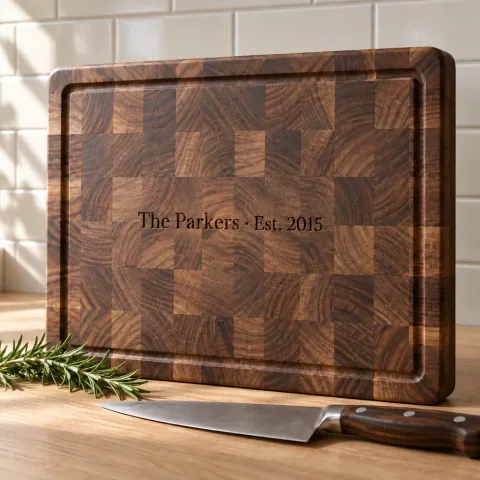
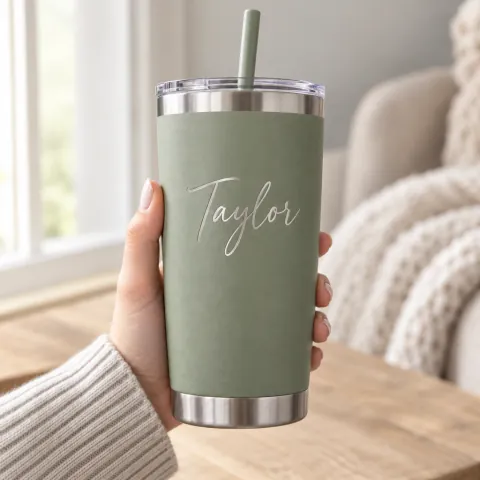
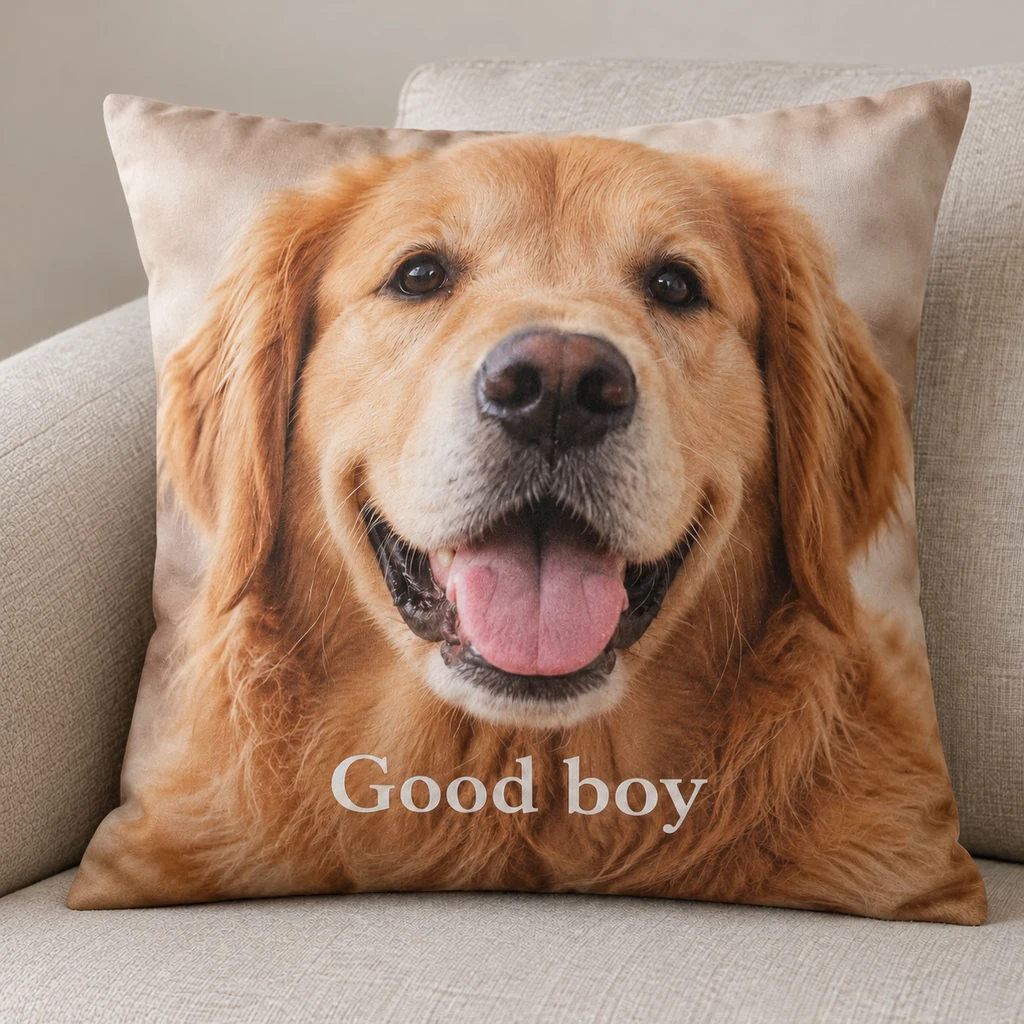
- Photo gifts: pillows, blankets, mugs, puzzles.
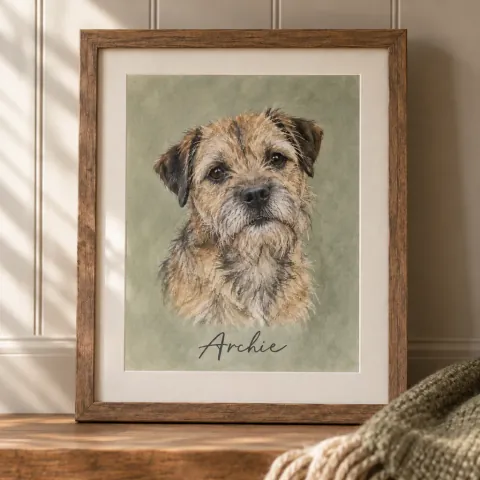
- Portraits: pets, couples, families, homes, drawn or painted from photos.
- Logo merch: shirts, caps and bags with a company or team logo.
- Print your design: posters, stickers and labels from a finished file.
- Food: cakes and cookies with an edible photo.
Our photo pillow template asks for just three things: the photo (required), the crop (face only or full body) and an optional line of text up to 40 characters.
What a good upload box does
- Sits above Add to cart, where the shopper decides.
- Can be required on products you can’t make without a photo, so the order can’t go through without it.
- Accepts the right files: photos from a phone, or print files such as PDF for designs.
- Takes several files when the product needs them, like one photo per pet.
- Handles large files without failing on a weak connection.
- Shows a preview, so the shopper knows the right photo went up.
Make it required, at checkout too
A required upload stops Add to cart on the product page. Express checkout buttons don’t go through that form, so the check has to run again at checkout. Shopify’s Cart and Checkout Validation function does that, Shop Pay included, so an order can’t arrive without its photo.
Tell shoppers what a good photo is
Most bad photos are an instruction problem. One line under the upload box saves a lot of back and forth. Our pet portrait template says: “Daylight, eye level, no filters. Separate photos are fine.”
Say what matters for your product: the face in focus, the whole logo in frame, no screenshots of a screenshot. If the crop matters, show where it will fall.
Check that it will print
A print needs pixels. At 300 dpi, a common print standard, multiply each side in inches by 300:
| Print size | Pixels at 300 dpi |
|---|---|
| 4 × 6 in | 1,200 × 1,800 |
| 5 × 7 in | 1,500 × 2,100 |
| 8 × 10 in | 2,400 × 3,000 |
| 11 × 14 in | 3,300 × 4,200 |
| 16 × 20 in | 4,800 × 6,000 |
A 640 × 480 photo printed at 8 × 10 in comes out at about 60 dpi and looks soft. Some printers accept less for large prints seen from a distance; ask yours what they need.
Check the size on upload, and on the crop the shopper picks, not only on the original. Tell them right away, while they can still choose a better photo.
Let them crop on the page
A photo rarely arrives framed the way the product needs it. Letting the shopper crop, rotate and zoom on the product page means they decide what goes on the pillow, not you. Keep the original too, and cut the print file from it, so the crop doesn’t cost resolution.
Big files, weak connections
Photos from today’s phones are often several megabytes, and shoppers upload them over mobile data. An upload that fails at 90% is a lost order. Uploading in parts, and picking up where it stopped after a drop, keeps large files from failing.
Keep the files private
Customer photos are personal: faces, children, pets, homes. Keep them in private storage and share them through links that expire, not public file addresses anyone can open. With GMVify Photo & File Upload, files sit in private storage and every link expires after an hour.
Get the file to production
The file should sit on the order with what production needs: the original, the crop, the size and the dpi. With GMVify Photo & File Upload, each order shows its files in a block in your admin, with a download link for each one. Nobody searches an inbox for “the photo from Tuesday”.
Let them fix a wrong photo
Shoppers sometimes upload the wrong photo. Letting them replace it from the order status page saves a round of emails for both of you, and the new file lands on the same order.
Common mistakes
- Asking after checkout. The order waits for the photo, and the photo waits for a reminder.
- No guidance. Shoppers can’t meet a standard nobody told them about.
- Checking only the original. A big photo cropped to a face can still be too small to print.
- Public links. A file address that anyone can open is not a place for family photos.
- Email for changes. Replacing a file should take one step, not a thread.
Questions merchants ask
Can a Shopify theme take uploads without an app?
Shopify themes don’t include an upload box. Adding one yourself takes theme code; an app adds it as a block in the theme editor.
What size photo do I need for a print?
Multiply the print size in inches by 300. An 8 × 10 in print needs 2,400 × 3,000 pixels.
Which files should I accept?
Only what you can use: photos for photo products, and the print files your printer works from, such as PDF, for designs.
Where do I find the uploaded files?
With GMVify Photo & File Upload, in a block on each order in your Shopify admin, with a download link for every file.
What happens to the files when I uninstall?
With GMVify Photo & File Upload, nothing stays in your theme, and your files and settings are deleted after Shopify confirms the uninstall.
Can shoppers upload more than one photo?
Yes, when the product needs it, like one photo per pet or several for a family portrait. Set how many files the field takes.